
How to Make Your Phone Battery Last Longer
How to Make Your Phone Battery Last Longer
Full charge in the morning, reaching for the charger by early afternoon it’s rarely a sign your phone is old. More often it’s a handful of settings and habits quietly draining power in the background. Here’s what actually moves the needle, and what doesn’t.
Why Batteries Drain Faster Than You Expect
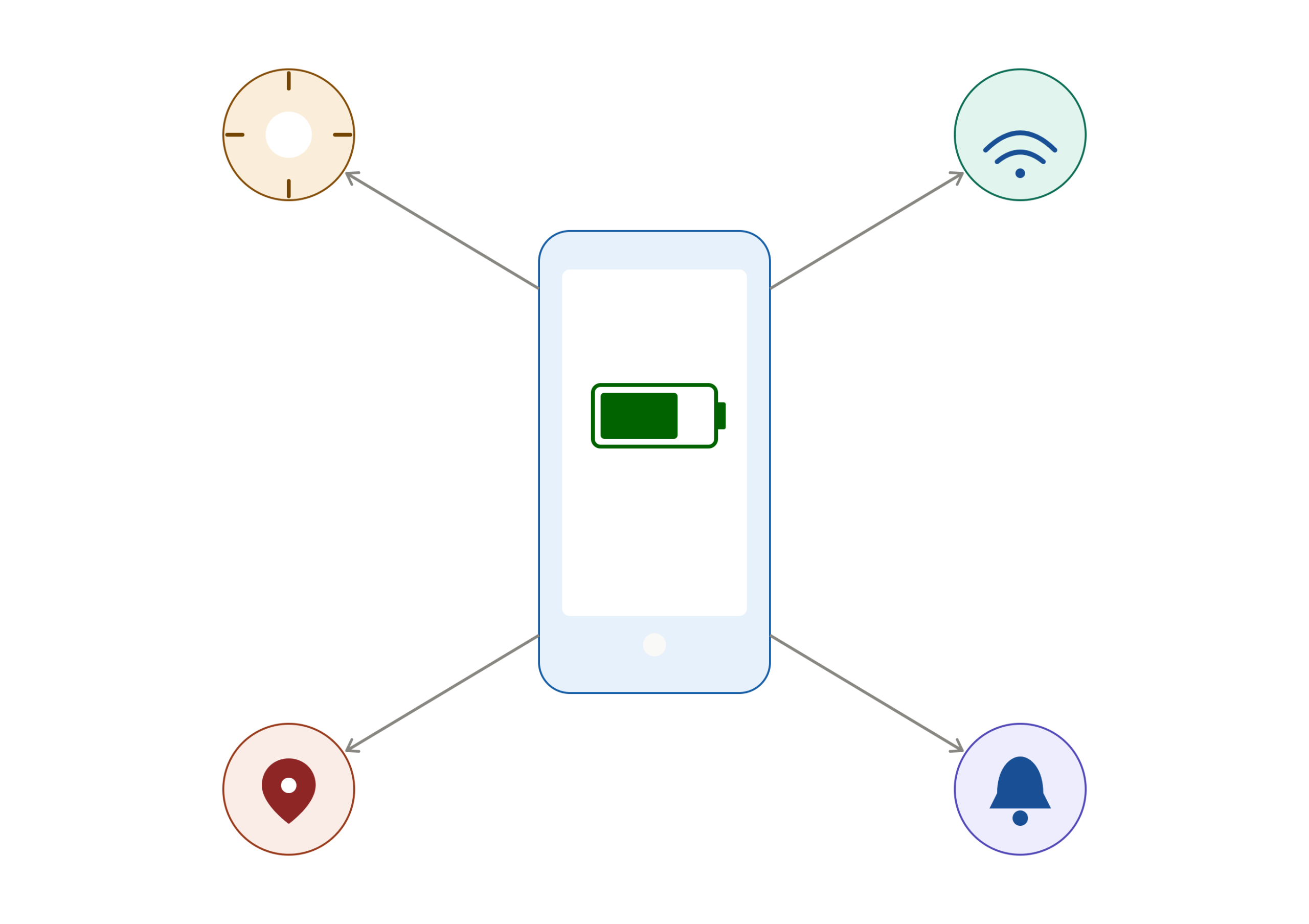
Modern phones run background syncs, location checks, and network searches constantly, but two factors do most of the damage:
- The screen. It’s the single biggest power draw on any smartphone more than the processor, radios, or any app.
- Battery age. Lithium-ion batteries lose capacity over charge cycles. Apple and Android manufacturers generally rate batteries to retain about 80% of original capacity after 500 full charge cycles so a two-to-three-year-old phone will drain faster even with identical usage.
Start by checking which of the two you’re dealing with: go to Settings > Battery (both iOS and Android show this) and look at the battery health percentage and the per-app usage breakdown before changing anything else.
1. Check Battery Usage First
Both platforms show exactly which apps and system processes consumed power over the last 24 hours or 10 days. Look for:
- An app you rarely open showing high usage likely running background refresh unnecessarily.
- Any app showing high “background activity” relative to its “screen time” a sign it’s syncing more than it needs to.
Fix: disable background app refresh for that specific app (Settings > General > Background App Refresh on iOS, or Settings > Apps > [app] > Battery on Android), rather than restricting every app across the board.
2. Cut Screen Drain
- Turn on auto-brightness rather than manually maxing it out; it’s the highest-impact single change most people can make.
- Shorten screen timeout to 30 seconds if you don’t need it longer; every extra minute the display stays lit after you’ve stopped using it is wasted power.
- Dark mode helps, but only on OLED/AMOLED screens, where black pixels are actually switched off. On LCD screens (some budget Android phones) it makes no measurable difference, since the backlight stays on regardless of pixel color.
3. Manage Connections Deliberately
- Turn off Wi-Fi when you’re somewhere with no networks to join otherwise your phone keeps scanning.
- Turn off Bluetooth when you’re not using any paired accessories.
- Keep Location Services on for apps that need it, but set individual apps to “While Using” instead of “Always” (Settings > Privacy > Location Services on iOS, Settings > Location > App permissions on Android) this is more effective than disabling location entirely, since you keep functionality for the apps you actually use it in.
4. Use Power-Saving Mode Strategically
Low Power Mode (iOS) or Battery Saver (Android) throttles background activity and reduces performance. Don’t leave it on permanently save it for when you know you’ll be away from a charger for several hours. Running it constantly just means a slower phone with only marginal extra battery life day to day.
5. Keep Your Phone Cool
Heat is genuinely bad for lithium-ion batteries. Manufacturers including Apple and Samsung warn that operating above roughly 35°C (95°F) accelerates permanent capacity loss. Avoid:
- Leaving your phone on a car dashboard in direct sun.
- Charging it while it’s inside a thick case that traps heat.
- Extended gaming sessions while it’s already warm from charging.
6. Charging Habits That Actually Matter
The old advice to fully drain a battery before recharging is outdated and, for modern lithium-ion batteries, counterproductive deep discharges add more wear than partial charges. What actually helps:
- Use the charger that came with your phone, or an MFi/manufacturer-certified equivalent cheap third-party chargers can deliver inconsistent voltage that stresses the battery.
- If your phone offers Optimized Battery Charging (iOS) or Adaptive Charging (Android), leaving it on it slows the final charge to 100% to reduce time spent fully charged, which is when batteries degrade fastest.
- Fast charging is fine to use when you need it, but there’s no benefit to always charging at maximum speed if you’re just leaving the phone plugged in overnight.
7. Trim Notifications and Widgets
Every notification wakes the screen and can trigger vibration and a background check. Go through Settings > Notifications and turn off alerts for apps where you don’t need real-time updates; promotional and social notifications are usually the easiest cut. Live widgets that auto-refresh (weather, stocks, sports scores) add up the same way; keep only the ones you actually check.
8. Airplane Mode Use It Right
Airplane mode is most useful in areas with weak signals, where your phone burns extra power constantly searching for a network, not as a general-purpose battery hack. If you have a decent signal, it won’t do much.
When It’s Not a Settings Problem
If your battery drains noticeably even when the phone is idle and none of the above changes anything, that points to a hardware or software issue rather than habits:
- Check Battery Health if maximum capacity has dropped meaningfully (commonly cited as below ~80%), settings changes won’t fix it; the battery itself needs replacing.
- If the phone feels hot constantly, or the battery looks swollen or physically deformed, stop using it and get it checked by a professional. Don’t attempt to open or replace a swollen battery yourself.
Quick Answers
Do I need to lower the brightness to save battery?
Yes the display is the single largest power draw on most phones, so this is one of the highest-impact changes available.
Should I let my phone fully discharge before charging?
No. Regular partial charges are better for lithium-ion battery longevity than repeated full discharges.
Does dark mode really save battery?
Only on OLED/AMOLED screens, where it can make a real difference. On LCD screens, it has little to no effect.
Why does my battery drain when I’m not using my phone?
Background app refresh, notifications, location checks, weak signal search, and battery aging are the most common causes check Settings > Battery for a per-app breakdown.
Is fast charging bad for my battery?
Not when used with the manufacturer’s charger. It does generate more heat than slow charging, so it’s best for occasional top-ups rather than constant use.




One Comment