
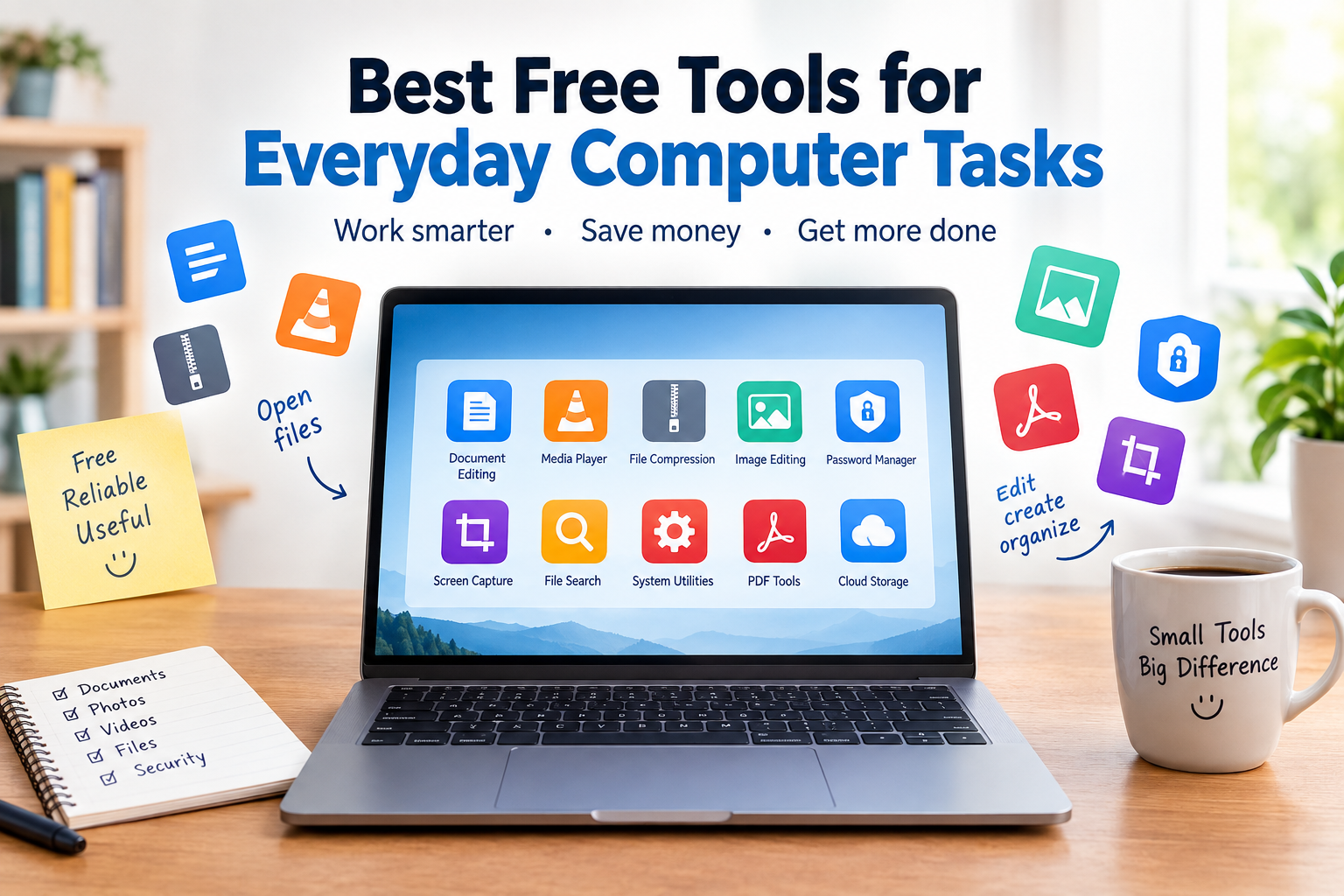
Best Free Tools for Everyday Computer Tasks
Your computer can do a lot, but the right free tool can make everyday tasks much easier. Whether you are trying to open an unusual file, edit a document, organize photos, capture your screen, or simply find a file you misplaced months ago, there is often a free program that can help. The challenge is finding tools that are genuinely useful instead of downloading software you will never use.
Many beginners run into the same problems. They install several apps that perform the same job, accidentally choose software with unwanted extras, or struggle to tell whether a “free” program is actually free. Others stick with whatever application came preinstalled, even when it does not handle a particular task very well.
That is why knowing the Best Free Tools for Everyday Computer Tasks can save both time and money. You do not need a computer packed with dozens of programs. A small collection of reliable tools can cover a surprising number of common jobs.
Before choosing anything, though, it helps to understand what these tools actually do and which everyday problems they are designed to solve.
What Are the Best Free Tools for Everyday Computer Tasks?
Free computer tools are programs or web-based services that help you complete common jobs without requiring a paid subscription or expensive software license. They can handle everything from documents and media playback to screenshots, file compression, password management, and basic image editing.
For a beginner, the important point is that “free” does not automatically mean “low quality.” Several well-established projects offer capable free versions, including open-source applications such as VLC, 7-Zip, LibreOffice, and GIMP. Current Windows software guides also commonly highlight tools such as Microsoft PowerToys, Bitwarden, ShareX, and file-search utilities for everyday use.
Think about a normal day at home. You receive a ZIP file by email, need to open a PDF, want to trim a picture, and later need to watch a video downloaded from your phone. You could search for a different solution for every task, or you could have a few trusted programs ready to handle them.
For example, VLC is a free, open-source media player that supports a wide range of video and audio formats, while 7-Zip is designed for creating and extracting compressed archives.
The best approach is not to install everything available. It is to choose a small set of reliable tools based on the things you actually do on your computer.
Why Do People Need Free Tools for Everyday Computer Tasks?
Built-In Apps Do Not Always Cover Every Task
Modern operating systems already include useful programs for browsing, screenshots, file management, media, and basic productivity. However, there are still situations where a dedicated application can make a particular job easier.
For example, Windows can handle common ZIP files, but someone who regularly works with different archive formats may prefer 7-Zip for additional flexibility.
The important point is not that built-in software is bad. It is that different tasks sometimes require different capabilities.
Paid Software Can Be Expensive for Casual Users
Professional applications can be excellent, but beginners do not always need professional features.
Someone who edits one family photo every few months probably does not need an expensive professional editing subscription. Similarly, a student who occasionally creates documents may not need every advanced office feature available.
Free alternatives can cover basic needs without adding another monthly bill.
People Often Download Too Many Similar Programs
One common problem is software duplication.
A user might have three PDF readers, two media players, several image editors, and multiple file-compression utilities simply because different websites recommended them.
This creates unnecessary clutter. It can also make it harder to know which program should open a particular file.
A smaller toolkit is usually easier to maintain.
Everyday Tasks Are More Varied Than They Look
“Using a computer” is not one single activity.
You might write a letter in the morning, organize photos in the afternoon, attend an online meeting later, and download a compressed folder at night.
Each task can have different requirements. A good collection of free tools lets you handle those situations without constantly searching for new software.
Free Does Not Always Mean the Same Thing
The word “free” can be misleading.
Some programs are completely free. Others have free versions with optional paid upgrades. Some are free for personal use but have different licensing terms for businesses.
For example, Microsoft’s Store currently lists many free apps, but some entries are marked as offering in-app purchases.
Understanding the difference helps you avoid installing something expecting every feature to be available at no cost.
Best Ways to Choose and Use Free Computer Tools
1. Start With the Task, Not the App
Before downloading anything, identify the actual problem you want to solve.
Instead of searching for “best computer software,” ask a more specific question: “I need to extract a ZIP file,” “I need to play an MKV video,” or “I need to resize several images.”
This makes the search much easier.
For example, if you only need to open an occasional ZIP archive, Windows may already be sufficient. If you regularly work with many archive formats, a dedicated tool such as 7-Zip may make more sense.
The common mistake is installing a popular program first and looking for a reason to use it later.
2. Prefer Established and Well-Maintained Projects
A free program should not be judged only by its price.
Look at whether the software is actively maintained, whether the developer provides clear information, and whether the official download location is easy to identify.
For example, VLC’s official site clearly describes it as free and open source and provides downloads for multiple Windows versions and architectures.
A practical rule is simple: if you cannot figure out who makes the software or where its official download page is, pause before installing it.
3. Download From the Official Website
This is one of the easiest ways to avoid unnecessary problems.
Search results can contain third-party download pages that package software differently or add unrelated offers. The safest starting point is usually the developer’s official website or a trusted operating-system store.
For example, VideoLAN provides the official VLC download directly from its website.
The same principle applies to tools such as 7-Zip, LibreOffice, GIMP, and other established projects.
Do not click the first download button you see without checking where it leads.
4. Check What “Free” Actually Includes
Before installing a program, look at its pricing page or license information.
Ask yourself:
- Is the main feature actually free?
- Is there a trial that becomes paid later?
- Are important features locked behind a subscription?
- Is it free for personal use only?
- Does the installer offer optional extras?
This matters because “free download” and “free software” can mean different things.
For instance, Microsoft’s Store distinguishes free apps from apps that are free but offer in-app purchases.
Knowing this before installation prevents unpleasant surprises later.
5. Keep Your Software List Small
You do not need twenty applications to maintain a useful computer.
A beginner might start with a basic document tool, a media player, an archive utility, and perhaps a password manager or image editor depending on their needs.
For example:
- Documents: LibreOffice
- Media: VLC
- Compressed files: 7-Zip
- Windows utilities: PowerToys
- Password management: Bitwarden
- Image editing: GIMP
These are examples of categories, not a requirement to install every application.
A smaller software collection means fewer updates, fewer notifications, and less clutter.
6. Use Built-In Windows Features When They Are Enough
Free third-party software is not automatically better than what your computer already provides.
Windows already includes useful features for screenshots, basic file management, browsing, security, and common archive operations.
If the built-in option handles your task perfectly well, there is no reason to add another program.
For example, someone who extracts one ZIP file every few months may have no reason to install a dedicated archive manager. On the other hand, someone who regularly handles different archive formats may benefit from one.
The goal is convenience, not the largest possible software collection.
7. Choose Tools That Solve More Than One Small Problem
A useful application can sometimes replace several smaller utilities.
Microsoft PowerToys is a good example. It is a collection of Windows utilities rather than a single-purpose application, with features covering areas such as window management, keyboard shortcuts, file handling, and other productivity tasks.
Suppose you frequently rename files, arrange windows, or need quick access to certain Windows functions. Instead of searching for a separate program for every small annoyance, a utility collection may be more practical.
Do not install every feature, though. Use the parts that solve problems you actually have.
8. Keep Important Programs Updated
Once you find software you like, do not forget about updates.
Updates can add features, fix bugs, and address security problems. CISA recommends installing software updates promptly because updates can address security weaknesses as well as improve reliability.
This is especially important for browsers, password managers, media software, document applications, and other programs that regularly interact with downloaded or online content.
A common mistake is installing an application once and never checking it again.
9. Check Compatibility Before Installing
A program that works perfectly on one computer may not be the right choice for another.
Check the operating system, processor architecture, available storage, and any minimum requirements listed by the developer.
VLC, for example, currently provides separate Windows downloads including 64-bit and ARM64 options.
You usually do not need to understand complicated technical specifications. Just check the developer’s requirements and choose the installer intended for your system.
10. Remove Tools You No Longer Use
Software clutter tends to grow quietly.
You install a program for one specific project, use it twice, and then forget about it. Months later, it is still sitting on the computer.
Every few months, review your installed applications.
If you cannot remember why you installed something and you no longer need it, consider uninstalling it.
This keeps your computer easier to manage and makes it simpler to identify the programs you actually trust.
Expert Tips
Keep a “Core Tools” Setup
Instead of copying a huge list of software from someone else’s computer, create your own small core collection.
For example, a student might need LibreOffice, VLC, 7-Zip, and a screenshot utility. A photographer might need an image editor and file-management tools instead.
Your software setup should reflect your routine.
Test One New Tool at a Time
Installing five applications at once makes troubleshooting difficult.
If something changes after installation, you may not know which program caused it.
Install one tool, test it with a normal task, and keep it only if it actually improves your workflow.
Read the Installer Screens Carefully
Beginners often click “Next” repeatedly.
That can cause optional components, shortcuts, browser changes, or other extras to be installed without the user noticing.
Take a few seconds to read each screen, particularly when an installer offers recommended or optional software.
Keep Download Sources Bookmarked
If you regularly use a program, bookmark its official download or support page.
This reduces the chance of accidentally downloading it from an unfamiliar website months later.
It also makes reinstalling software after a computer reset much easier.
Do Not Chase Every New App
A new tool appearing on social media does not mean you need it.
If your current application already handles the job reliably, changing tools may create more work than it saves.
For example, if VLC already plays all the media files you use, there is little benefit in installing three additional media players simply because they appeared on a “must-have apps” list.
Common Mistakes to Avoid
- Installing too many tools: More software does not automatically mean a better computer. Keep only programs that solve real problems.
- Downloading from random websites: Third-party download pages can be confusing or may bundle unwanted software. Prefer official developer pages or trusted app stores.
- Ignoring the difference between free and freemium: Some applications are free to download but reserve certain features for paid users. Check the terms before relying on them.
- Skipping updates: Outdated applications can contain bugs or security weaknesses. Keep important software current.
- Ignoring system compatibility: Always check whether the program supports your operating system and hardware.
- Clicking through installers too quickly: Read optional offers and installation settings before accepting them.
- Choosing software only because it is popular: A highly downloaded tool may still be unnecessary for your particular needs. Choose based on the task.
- Keeping programs you never use: Uninstall old applications occasionally so your computer remains easier to manage.
Pros and Cons of Best Free Tools for Everyday Computer Tasks
Pros
- Save money: Many capable applications are available without a subscription.
- Solve specific problems: Dedicated tools can make tasks such as media playback, compression, and image editing easier.
- Wide variety: There are free options for productivity, security, media, creativity, and file management.
- Good choices for beginners: Many popular free tools have straightforward interfaces and large user communities.
- Open-source options are available: Projects such as VLC, 7-Zip, and LibreOffice provide free alternatives to some commercial software.
Cons
- Too many choices can be confusing: Beginners may struggle to decide which application they actually need.
- Some free tools have paid upgrades: Certain applications offer optional subscriptions or premium features.
- Quality varies: Not every program described as free is equally reliable or well maintained.
- Updates require attention: Installed software needs to be kept current.
- Some tools duplicate built-in features: Installing another application may not provide any real benefit if Windows already does the job well.
Frequently Asked Questions
What free computer tools should a beginner install first?
Start with tools that solve problems you regularly encounter rather than installing a large package of applications. A basic setup might include an office suite such as LibreOffice, VLC for media playback, and 7-Zip for archive files. You may also want a password manager or image editor depending on your needs. Windows already provides many useful features, so there is no need to replace everything.
Are free computer tools safe to use?
Many free tools are safe, particularly well-established projects distributed through official websites. However, the word “free” alone does not guarantee safety. Check who develops the software, download it from the official source, read installation screens carefully, and keep the program updated. Avoid unfamiliar applications that make exaggerated claims or pressure you into installing additional software.
Is free software better than paid software?
Neither is automatically better. Free software can be more than enough for everyday tasks, while paid applications may offer specialized features, professional support, or advanced workflows. The sensible approach is to compare the features you actually need. If a free program handles your task comfortably, paying for another application may not provide much additional value.
What is the best free tool for opening ZIP files?
Windows can open and extract common ZIP archives without installing another program. For users who regularly work with compressed files or need support for additional archive formats, 7-Zip is a popular free and open-source option. It can create and extract archives and is available for Windows. The right choice depends on how frequently you work with compressed files.
What is a good free media player for a computer?
VLC is a widely used free and open-source media player. Its official documentation says it supports many multimedia formats, discs, webcams, devices, and streaming protocols. For a beginner who simply wants one application capable of handling many common video and audio files, VLC is a practical option.
Can free tools replace Microsoft Office?
For many basic tasks, yes. LibreOffice provides applications for documents, spreadsheets, presentations, and other office work. However, compatibility can matter when collaborating with people who rely heavily on Microsoft Office features or specific document formatting. Before switching completely, test the types of files you regularly use, especially if you share documents with coworkers or clients.
Should I install every free tool I find useful?
No. Installing too many programs can create clutter and make maintenance harder. It is better to build a small toolkit around your actual habits. If you regularly edit photos, choose one suitable image editor. If you rarely work with archives, your operating system may already be enough. Install software when it solves a recurring problem, not simply because it appears on a recommendation list.
How can I tell whether a free program is legitimate?
Start by identifying the developer and visiting the official website. Check whether the site clearly explains what the software does, provides documentation, and offers a legitimate download. Established projects usually have consistent branding, support information, and release history. Be especially cautious when a download page uses aggressive pop-ups, misleading buttons, or claims that your computer has urgent problems.
Do free tools slow down a computer?
Some applications can use memory, processor resources, or background services, particularly when they start automatically with Windows. This does not mean every free program will slow your computer noticeably. Avoid installing unnecessary software, disable unnecessary startup items when appropriate, and remove applications you no longer use. A small, carefully chosen toolkit is generally easier to manage than dozens of unnecessary programs.
Should I use free online tools instead of desktop software?
It depends on the task. Online tools can be convenient because there is usually nothing to install, but they may require an internet connection and can involve uploading files to a third-party service. Desktop applications can be more convenient for repeated work or sensitive files. Consider the type of information you are handling, your internet connection, and how frequently you perform the task.
Conclusion
The best free computer tools are not necessarily the ones with the longest feature lists. They are the programs that make your everyday work easier without creating unnecessary complications.
For beginners, the smartest approach is to start with the tasks you actually perform. If you work with compressed files, consider an archive utility such as 7-Zip. If you regularly play different media formats, VLC can be useful. For documents, an office suite such as LibreOffice may cover many everyday needs. Windows utilities such as PowerToys can also add helpful features when the built-in system falls short.
Most importantly, download software from trustworthy sources, check what the free version includes, keep important applications updated, and remove programs you no longer need.
You do not need a computer filled with dozens of applications. Start with one problem, find one reliable solution, and build your toolkit gradually. That simple approach can save money, reduce clutter, and make everyday computer tasks much less frustrating.