Best Free Tools for Everyday Computer Tasks
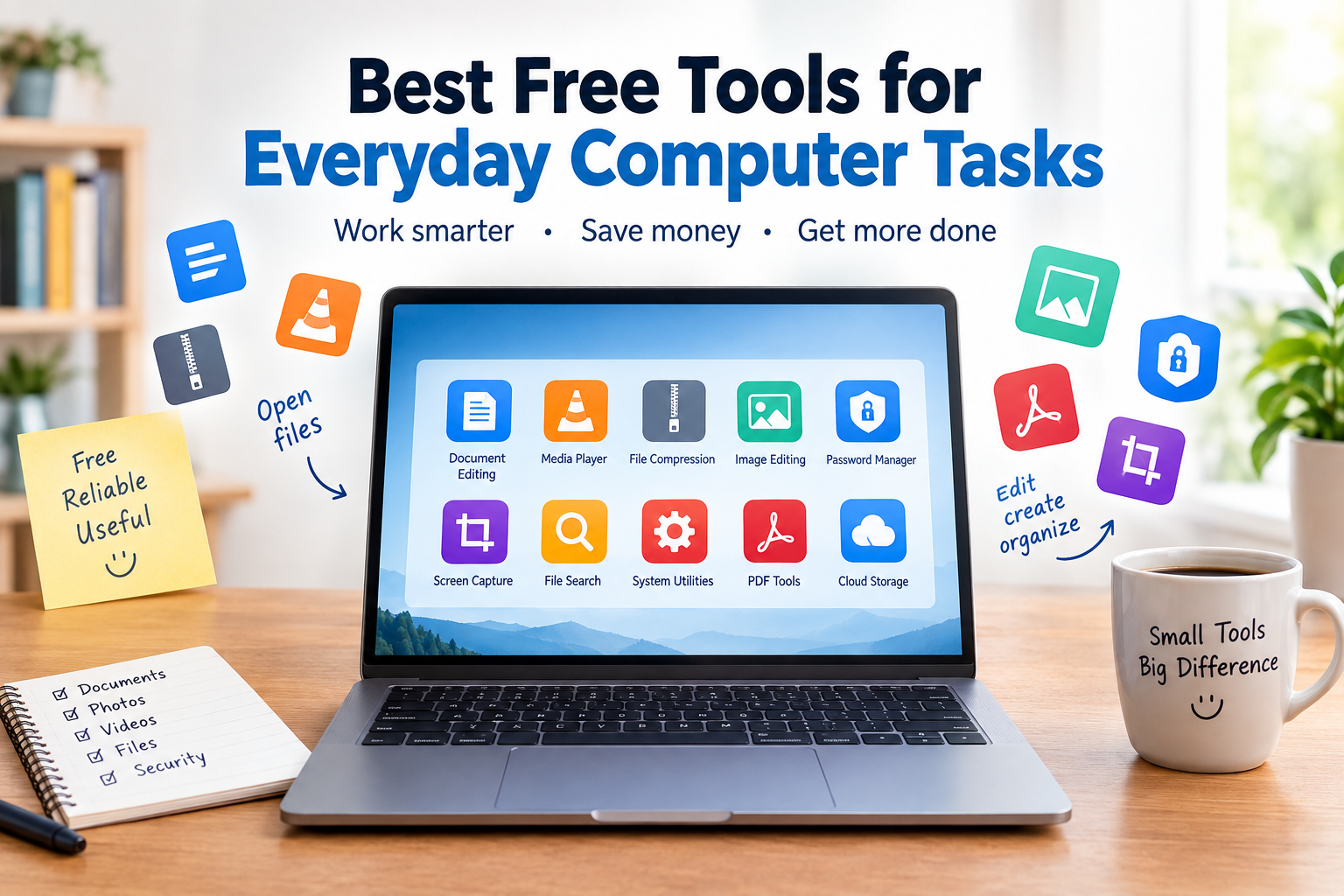
Your computer can handle plenty of work straight out of the box, yet picking the right free utility makes daily routines dramatically smoother. Whether you need to open an unfamiliar archive, draft a clean document, sort family photos, grab a quick screen recording, or dig up a file you saved six months ago, there is almost always a reliable free program built for the job. The real trick is choosing software that genuinely saves time rather than cluttering your hard drive with apps you never touch.
Most beginners run into the exact same traps. They install three different apps that all perform the same job, accidentally click through installers packed with unwanted extras, or struggle to tell whether a “free” program is actually free or just a locked trial. Others stick purely with preinstalled apps even when those built-in tools feel clunky for a specific task.
That is why knowing the best free tools for everyday computer tasks saves both frustration and money. You never need a laptop crammed with forty different utilities; a small, thoughtfully chosen toolkit handles almost every daily chore without slowing your machine down.
What Are the Best Free Tools for Everyday Computer Tasks?
Free computer tools are software programs or utilities on the web that allow you to do your day-to-day tasks without having to buy expensive licenses or pay for monthly subscriptions. They cover a wide range of daily jobs, including editing documents, playing videos, capturing your screen, compressing files, managing passwords, and doing basic photo touch-ups.
For anyone starting out, the most important takeaway is that “free” does not mean watered-down or unreliable. Several long-standing open-source projects match or beat commercial software—including VLC, 7-Zip, LibreOffice, and GIMP. Modern Windows guides also frequently highlight Microsoft PowerToys, Bitwarden, ShareX, and fast local file-search utilities for daily productivity.
Picture an ordinary afternoon at home. A zipped folder arrives in your inbox, you need to read and sign a PDF, crop a product photo, and later watch a video transferred from your phone. Instead of hunting down a random website every time a new file format pops up, having a handful of trusted tools already installed lets you breeze right through those tasks.
For instance, VLC plays virtually any video or audio format without hunting for extra codecs, while 7-Zip opens and creates compressed archives cleanly. The smartest habit is not downloading every popular app on the internet—it is keeping a compact set of proven tools tailored to what you actually do.
Why Do People Need Free Tools for Everyday Computer Tasks?
Built-In Apps Do Not Always Cover Every Task
Modern operating systems ship with decent built-in utilities for web browsing, basic screenshots, file folders, and media playback. Even so, there are plenty of moments where a dedicated program makes life much easier. Windows handles standard .zip folders natively, for example, yet anyone who regularly opens .7z, .rar, or encrypted archives gets far smoother control with 7-Zip. Built-in apps aren’t bad—they simply stop at the basics.
Paid Software Can Be Expensive for Casual Users
Commercial suites offer deep capabilities, but casual home users rarely need heavy-duty studio tools. Someone who crops a handful of family pictures every few months has zero reason to pay for a monthly creative subscription. Likewise, a student writing essays or tracking household spreadsheets does not need costly enterprise office plans when free alternatives handle those files effortlessly.
People Often Download Too Many Similar Programs
Software duplication creeps up fast. Because different blogs recommend different apps, many users end up with three PDF viewers, two media players, four screenshot utilities, and multiple archive tools installed side by side. That overlap wastes storage and creates confusion over which program opens which file. Keeping a lean toolkit is always easier to manage.
Everyday Tasks Are More Varied Than They Look
“Using a computer” covers dozens of distinct micro-tasks. You might draft a letter in the morning, resize images after lunch, join a video call in the afternoon, and unpack a compressed project folder at night. Each job calls for slightly different capabilities, and a balanced collection of free tools lets you switch gears smoothly without pausing to search for software mid-task.
Free Does Not Always Mean the Same Thing
The label “free” covers several very different licensing models. Some tools are 100% free and open source forever; others offer a free tier with paid upgrades, impose time-limited trials, or allow free personal use while charging businesses. Even on the Microsoft Store, free listings separate genuinely free apps from software containing in-app purchases. Checking those terms upfront saves unpleasant surprises later.
10 Best Ways to Choose and Use Free Computer Tools
1. Start With the Task, Not the App
Before downloading anything, pinpoint the exact problem you need to solve. Instead of typing “best computer software” into a search bar, ask something concrete: “I need to extract a .7z archive,” “I need to play an MKV video,” or “I need to batch-resize twenty photos.” If you only open a standard ZIP file twice a year, built-in Windows tools already suffice; if you handle varied archives weekly, 7-Zip makes total sense. Never install a popular program first and hunt for a reason to use it afterward.
2. Prefer Established and Well-Maintained Projects
Never judge free software on price alone. Look for active updates, transparent developer documentation, and an unmistakable official home page. VideoLAN’s official site, for example, clearly explains VLC’s open-source license and provides clean installers for different Windows versions. Whenever you cannot tell who builds a program or where its genuine home page lives, close the tab before downloading anything.
3. Download From the Official Website
Grabbing installers straight from the developer’s official domain or an official operating-system store is the simplest way to avoid bundled junkware. Third-party download portals frequently wrap free programs inside custom installers loaded with unwanted browser extensions or look-alike download ads. Whether you are installing VLC, 7-Zip, LibreOffice, or GIMP, always verify the web address before clicking download.
4. Check What “Free” Actually Includes
Spend thirty seconds reading the licensing or pricing page before running an installer. Confirm whether the core feature you need works without limits, whether a seven-day trial turns into a paid subscription, whether saving or exporting is locked behind a paywall, and whether free usage covers personal machines only. Knowing the difference between “free download” and genuinely free software protects your workflow.
5. Keep Your Software List Small
You do not need twenty utilities to run a capable computer. Most everyday users can cover nearly everything with a compact core setup—such as LibreOffice for documents and spreadsheets, VLC for video and audio playback, 7-Zip for compressed archives, Bitwarden for password management, GIMP for image editing, and Microsoft PowerToys for Windows productivity shortcuts. Treat that list as a menu of categories rather than a checklist you must install all at once.
6. Use Built-In Windows Features When They Are Enough
Third-party software is not automatically superior to what already comes on your PC. Windows includes solid built-in options for quick screenshots, basic file browsing, security protection, and standard ZIP folders. When the built-in tool already gets the job done without hassle, there is no reason to clutter your Start menu with another program.
7. Choose Tools That Solve More Than One Small Problem
Whenever possible, favor multi-purpose utilities that replace three or four single-trick apps. Microsoft PowerToys is a prime example—bringing batch file renaming, custom window snapping, color picking, and quick launcher shortcuts together inside one lightweight package. Enable only the modules you actually use so the app stays fast and out of your way.
8. Keep Critical Programs Updated
Downloading a useful tool is just the first step. What protects your computer against sudden crashes and security holes is keeping it updated. Security agencies like CISA often stress the importance of installing updates in a timely manner because software patches fix known vulnerabilities and help programs continue to work properly. Keep your web browsers, password managers, PDF viewers, and media players (any app that routinely opens files downloaded from the internet) updated.
9. Check Compatibility Before Installing
A program that performs effortlessly on a new desktop might run poorly—or fail to launch at all—on an older laptop or a different kind of processor. Before clicking download, take a quick look at the developer’s system requirements to verify operating system support, free storage space, and whether your machine runs on a 64-bit or ARM64 chip. Grabbing the specific installer built for your hardware saves you from setup errors right out of the gate.
10. Remove Tools You No Longer Use
Software clutter builds up silently over months. You install a program for a single weekend project, use it twice, and leave it sitting in the background forever. Every few months, open your installed apps list and uninstall anything you no longer recognize or open. Pruning unused software frees storage, reduces background startup tasks, and keeps your system tidy.
Practical Habits for Managing Your Daily Toolkit
Once you have picked your core programs, a few simple habits keep your computer running cleanly year-round:
-
Build your own “Core Tools” setup: Tailor your installs to your actual routine rather than copying a stranger’s mega-list. A college student might rely on LibreOffice, VLC, and 7-Zip, while someone editing social graphics leans toward GIMP and ShareX.
-
Test one new program at a time: Installing five utilities in one afternoon makes it impossible to tell which app caused a slowdown or changed a file association. Install one tool, test it on a real task, and keep it only if it proves genuinely useful.
-
Read every installer screen carefully: Clicking “Next” over and over without looking is the easiest way for unwanted toolbars, random desktop icons, or changed browser settings to slip onto your computer. Slow down for a moment and clear the checkmarks next to any optional add-ons before completing the setup.
-
Bookmark official download pages: Save the genuine websites of your favorite tools in a browser folder so you never accidentally click a fake search-engine ad when setting up a new computer later.
-
Ignore shiny-app hype: A trending utility on social media does not automatically deserve space on your drive. If VLC already plays every video file you throw at it, installing three extra media players adds zero value.
Mistakes to Avoid
-
Too many overlapping tools : Running four separate utilities that all do the same thing only creates unnecessary clutter and messy file-association conflicts instead of saving time.
-
Downloading from third-party mirror sites: Stick to official developer websites or trusted operating-system stores so you avoid modified installers packed with unwanted extras.
-
Freemium trials with free software: Before you start to build your regular workflow around a tool, check if it has watermarks, export limits or locked features.
-
Skipping security and bug patches: Because you skip software updates, you leave your PC vulnerable to preventable glitches and known security risks.
-
Check hardware and OS compatibility: Before you start installing, make sure that the installer you’re using matches your operating system and the type of chip you have (64-bit versus ARM64).
-
Clicking blindly through installation prompts: Don’t rush through installation and be sure to read through each screen and check box to avoid bundled add-ons or changes to your browser homepage.
-
Personal need over popularity: Even a highly rated app takes up space for nothing if it solves a problem you rarely encounter.
-
Installed programs forgotten indefinitely: Get into the habit of checking your installed programs every few months and remove tools you no longer need.
Frequently Asked Questions
What free computer tools should a beginner install first?
Start only with tools that solve tasks you handle every week rather than installing a massive software bundle. A practical starter kit includes LibreOffice for documents and spreadsheets, VLC for video and audio files, and 7-Zip for compressed folders, plus a password manager like Bitwarden if you want safer logins. Leave everything else alone until an actual need comes up.
Are free computer tools safe to use?
Well-known open-source and official free utilities are very safe when downloaded directly from their developer websites. Security issues most often stem from downloading through unofficial third-party sites, clicking deceptive download ads, or speeding through installation wizards without opting out of bundled add-ons. Always verify the domain, read setup screens carefully, and keep installed apps updated.
Is free software better than paid software?
Neither wins across the board. Free tools easily cover everyday home, student, and office routines without costing a rupee, whereas commercial suites justify their price for specialized studio work, enterprise collaboration, or dedicated phone support. Pick your software based on the features you actually need, not on the assumption that paying for something means you’ll get a better experience.
How do I unzip a ZIP file for free?
Windows already opens and extracts standard .zip files natively without extra software. However, if you regularly deal with .7z, .rar, .tar, or password-protected archives, 7-Zip is a lightweight, completely free open-source utility that handles virtually every archive format cleanly.
What is a good free media player for a computer?
VLC remains one of the most dependable free media players available. Developed by the non-profit VideoLAN project, it plays almost every video and audio file format out of the box—including MKV, MP4, AVI, and FLAC—without requiring separate codec packs or displaying ads.
Can free tools replace Microsoft Office?
For everyday writing, spreadsheets, and slide decks, LibreOffice handles the job remarkably well at zero cost. Keep in mind that complex macros or specialized corporate formatting created in Microsoft 365 can occasionally shift slightly when opened in another suite, so test your most important shared files before switching completely.
Do free tools slow down a computer?
Good lightweight tools barely touch system performance while closed, though apps that launch automatically at Windows startup or run background sync services can consume memory over time. Keep your installed list small, disable unneeded startup entries in Task Manager and uninstall programs you no longer use.
Do I have to use free online tools rather than desktop software?
Both have a role to play. Web-based tools are great for quick one-off jobs when you don’t want to install anything. They need an internet connection and you have to upload your files to servers outside your control. Desktop apps are faster, work completely offline and store private or sensitive files right on your own hard drive.
Verdict: A Trustworthy Free Computer Toolkit
The best free tools for everyday computer tasks are rarely the ones hidden under hundreds of complex menus, but instead the lightweight, reliable programs that quietly speed up your daily routine without getting in your way.
For starters, the best way to begin is matching software to the exact tasks you are doing right now. 7-Zip, to open compressed archives. VLC for smooth media play. LibreOffice for everyday documents and spreadsheets. PowerToys or Bitwarden, when you want helpful Windows shortcuts or safer password storage. Download strictly from official developer sites, check what “free” covers before installing, keep core programs updated, and uninstall anything you stop using. Start with one real problem, pick one trusted tool, and build your setup gradually.